¶ Request a New Account
Go to the IRT Portal
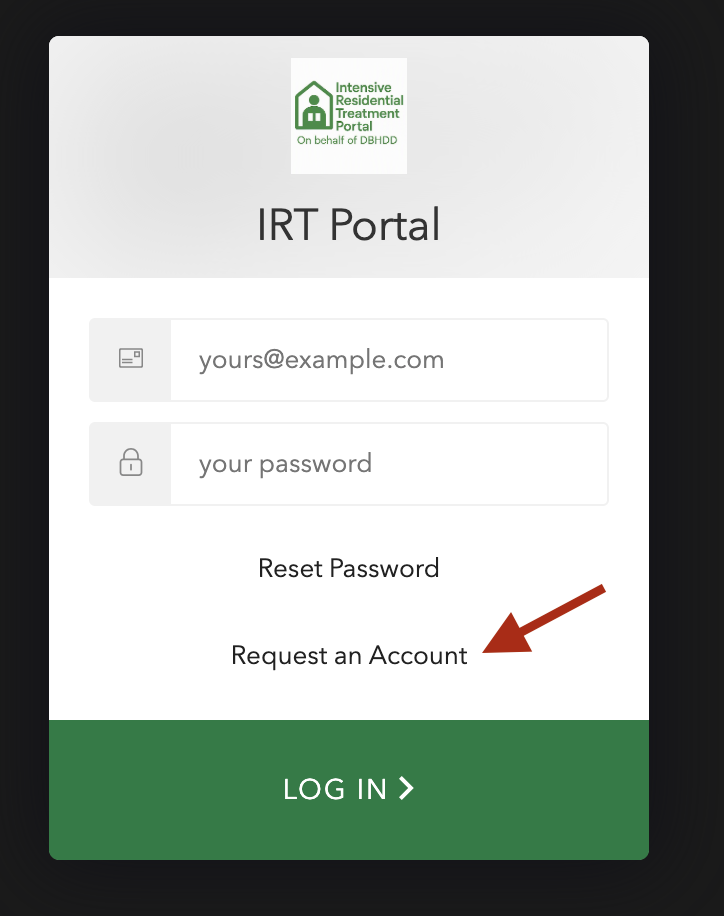
On the login page, select the Request an Account link
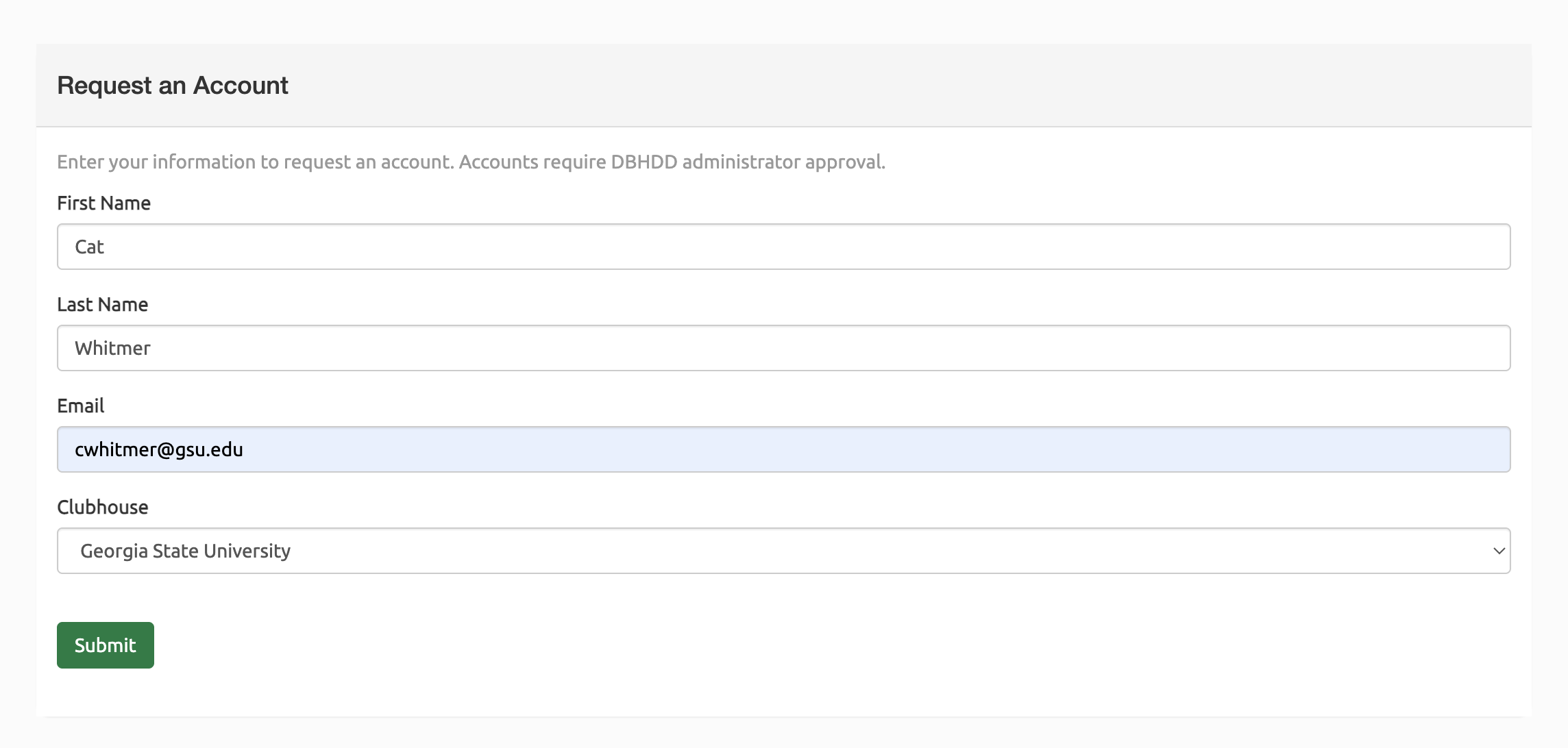
Fill out the form with your first and last name, staff email address, and select your site.
Select the Submit button.
On submittal, you will get a confirmation message that your request was submitted.

-
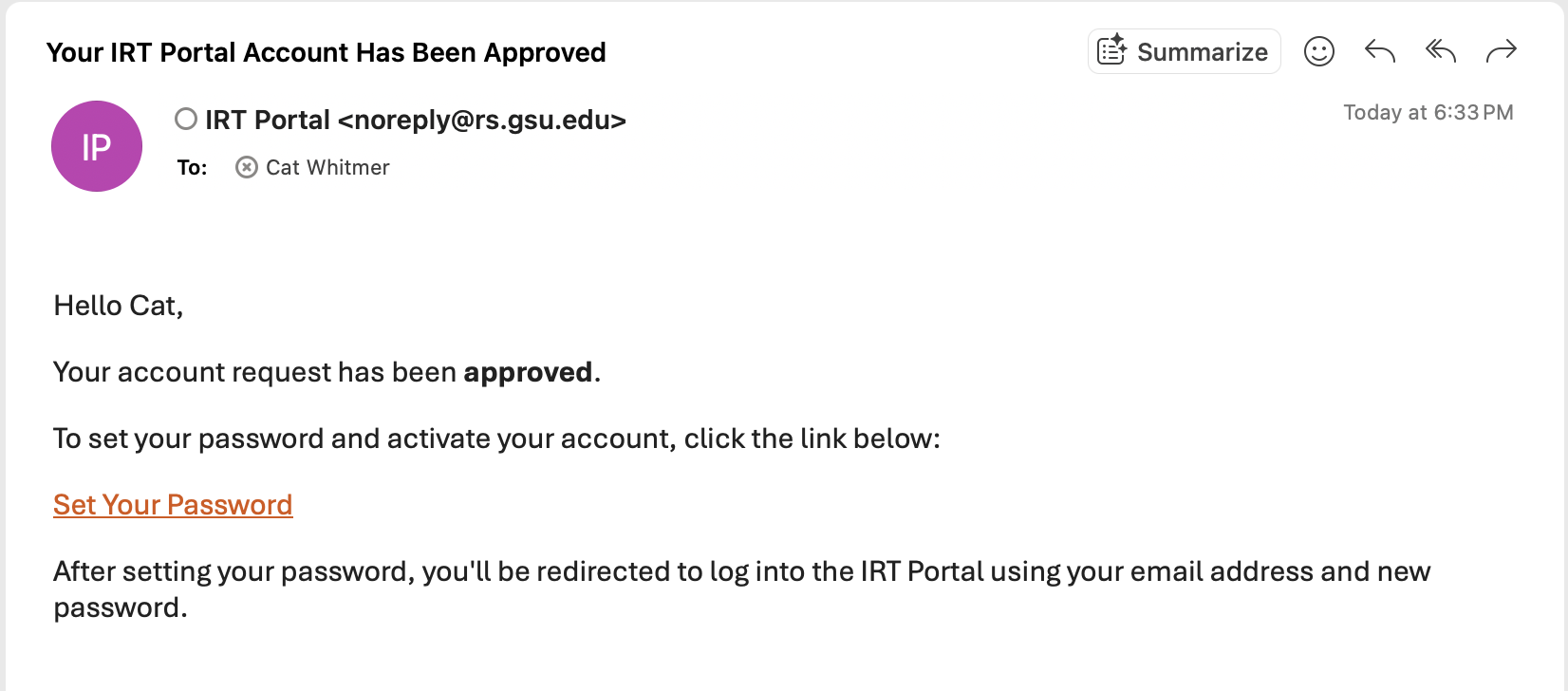
If Approved, you will be sent an email notification notifying you of the approval with a link to set your new password.
-
If Declined, you will be sent an email notification notifying you of the decline.
¶ Set Your New Password
In the approval email notification, select the Set Your Password link.
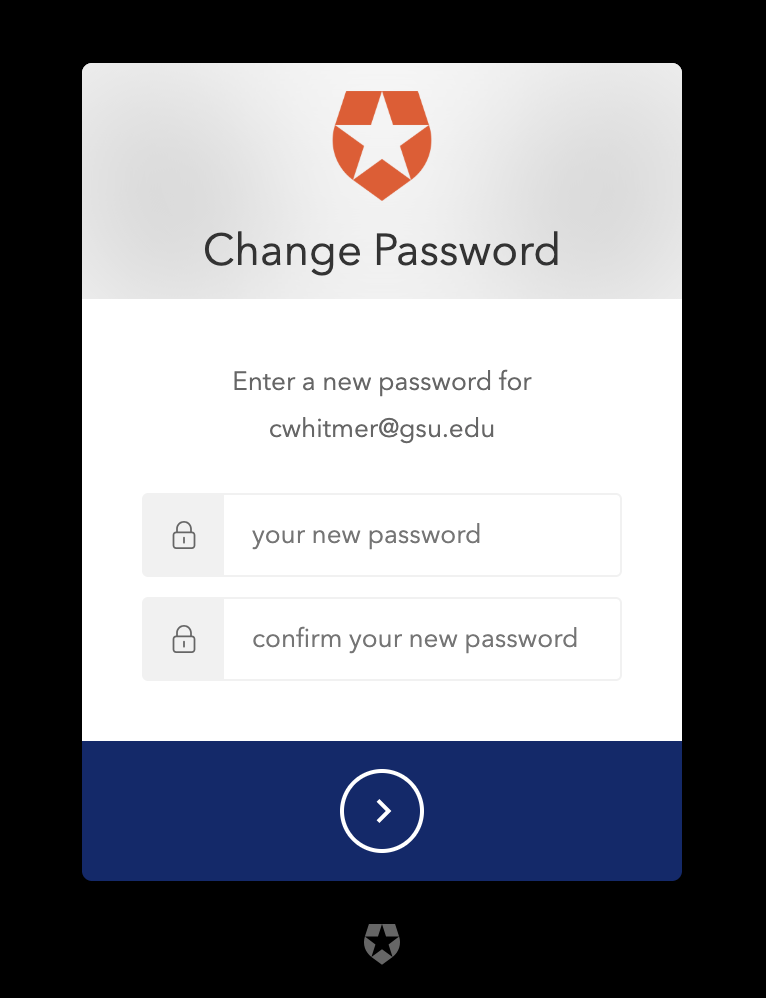
You'll be redirected to the Change Password page.
Enter a new password and then confirm the password. Select the next
button to confirm.
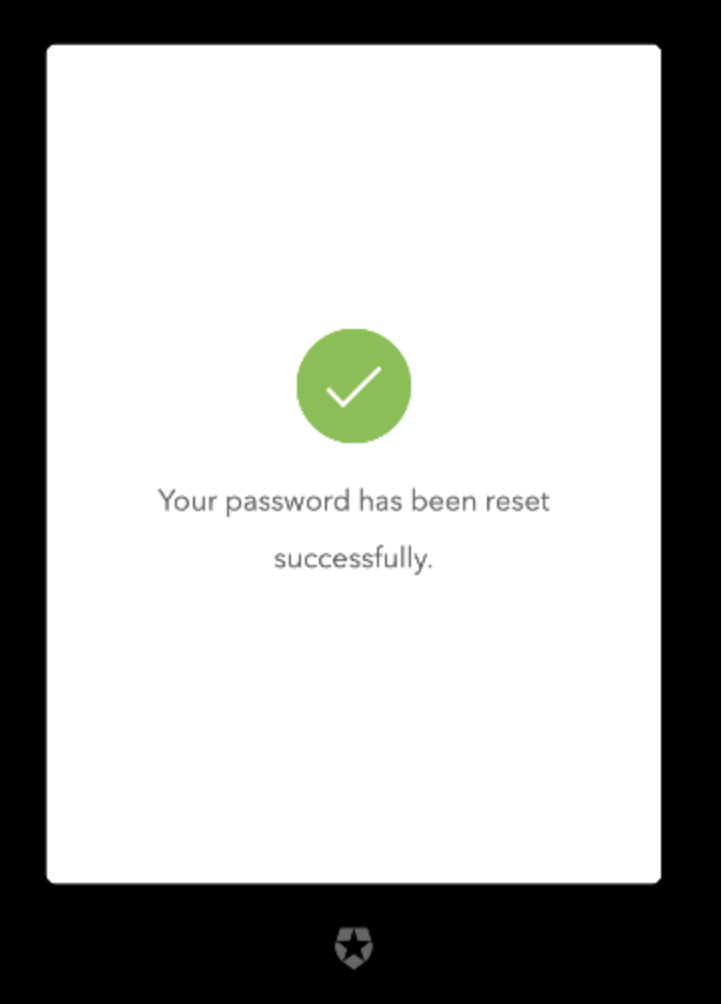
Return the IRT Portal to login with your new password.
Enter your Email and Password on the login page. Select the next button to submit.
¶ Confirm Your New Account
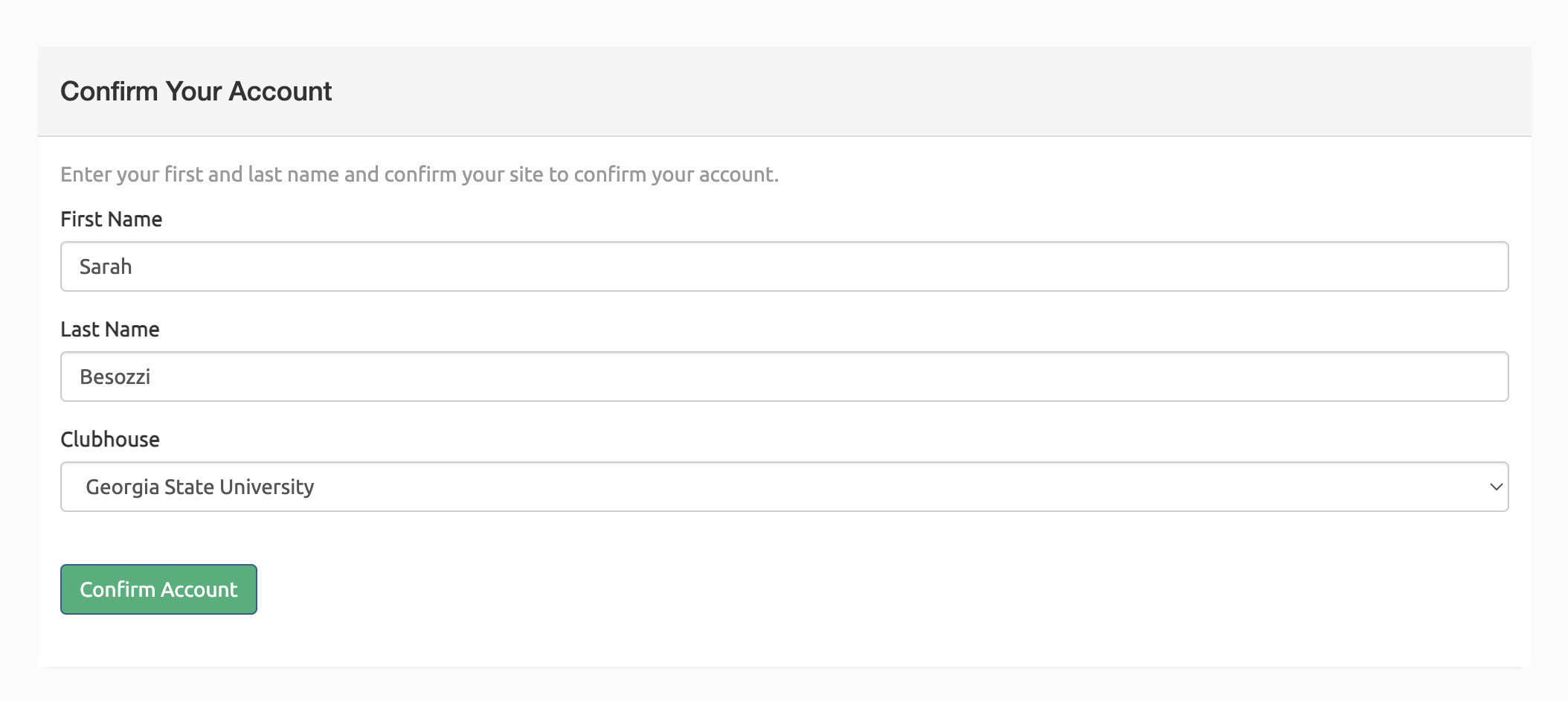
After login, you may be redirected to the Confirm Your Account page.
Enter your first and last name and select your Clubhouse. Select the Confirm Account button.
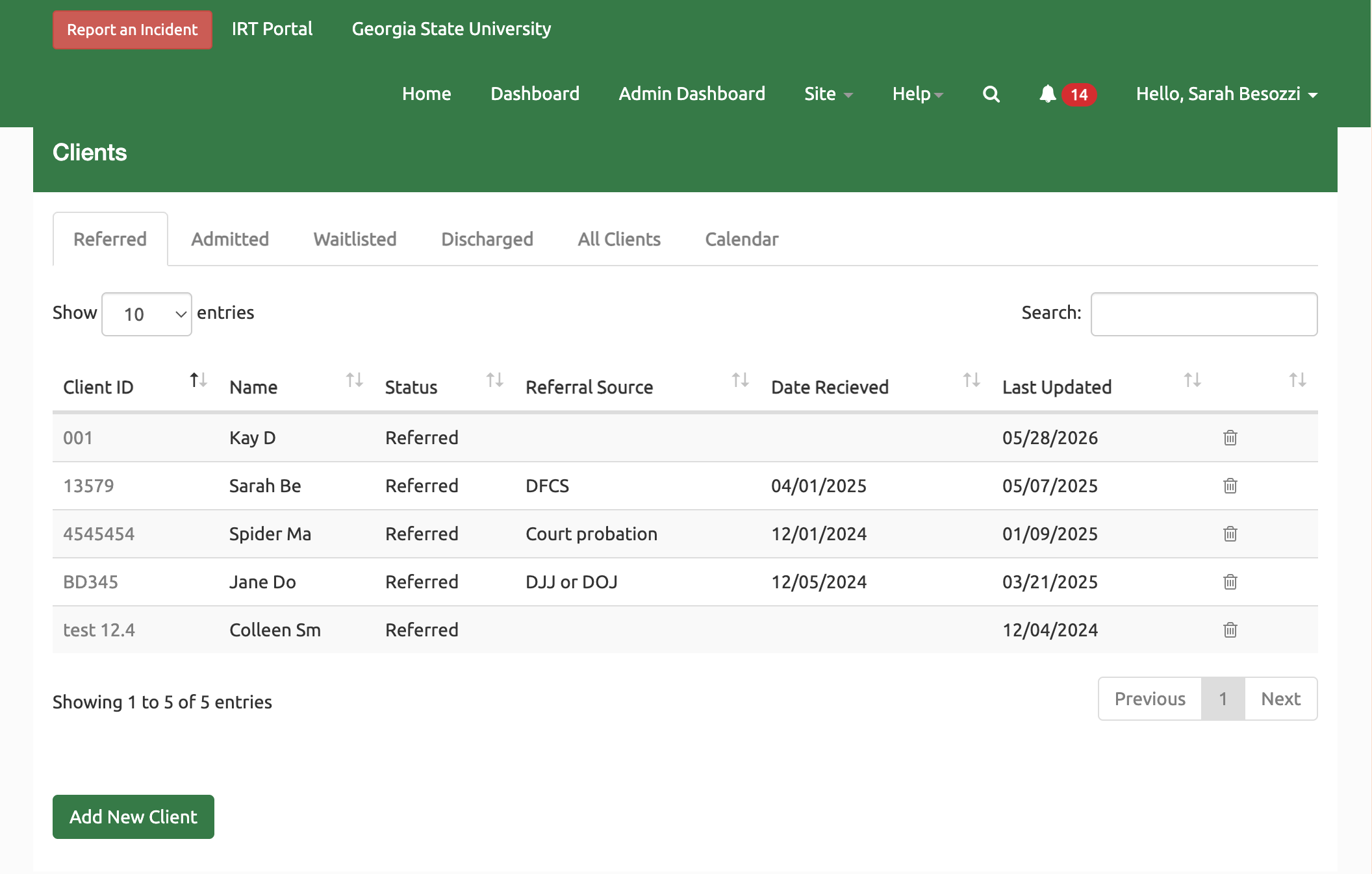
You'll be redirected to the home page.
¶ Reset Your Password
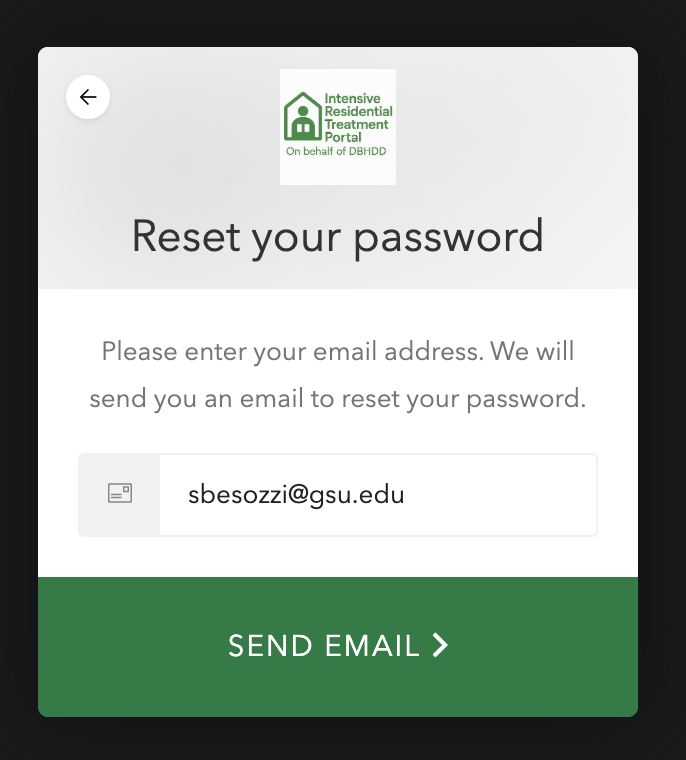
In the login page, select the Reset Password link.
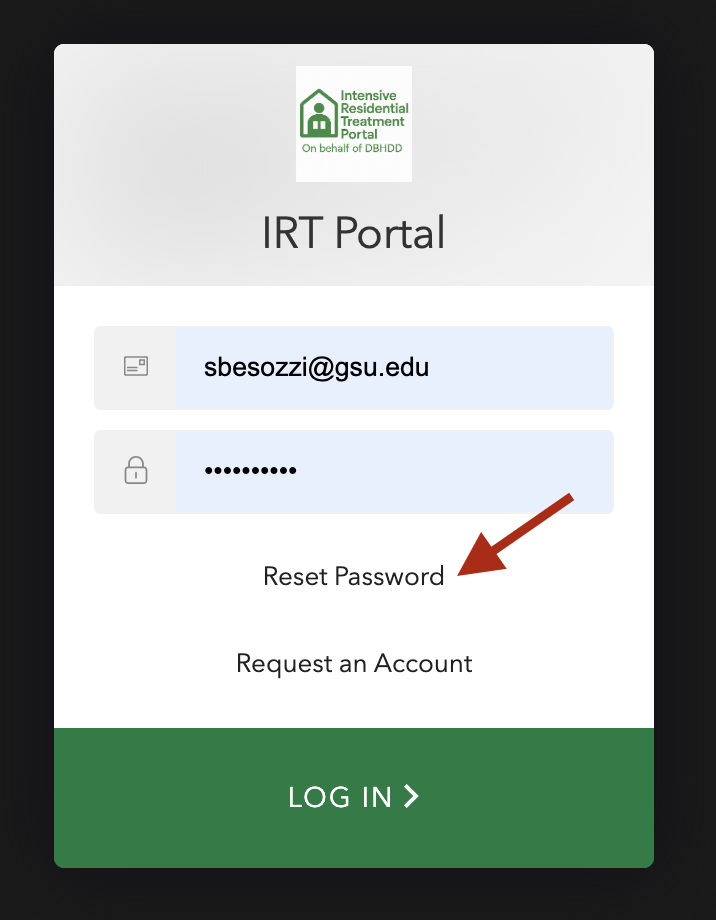
Enter your staff email address and select Send Email.
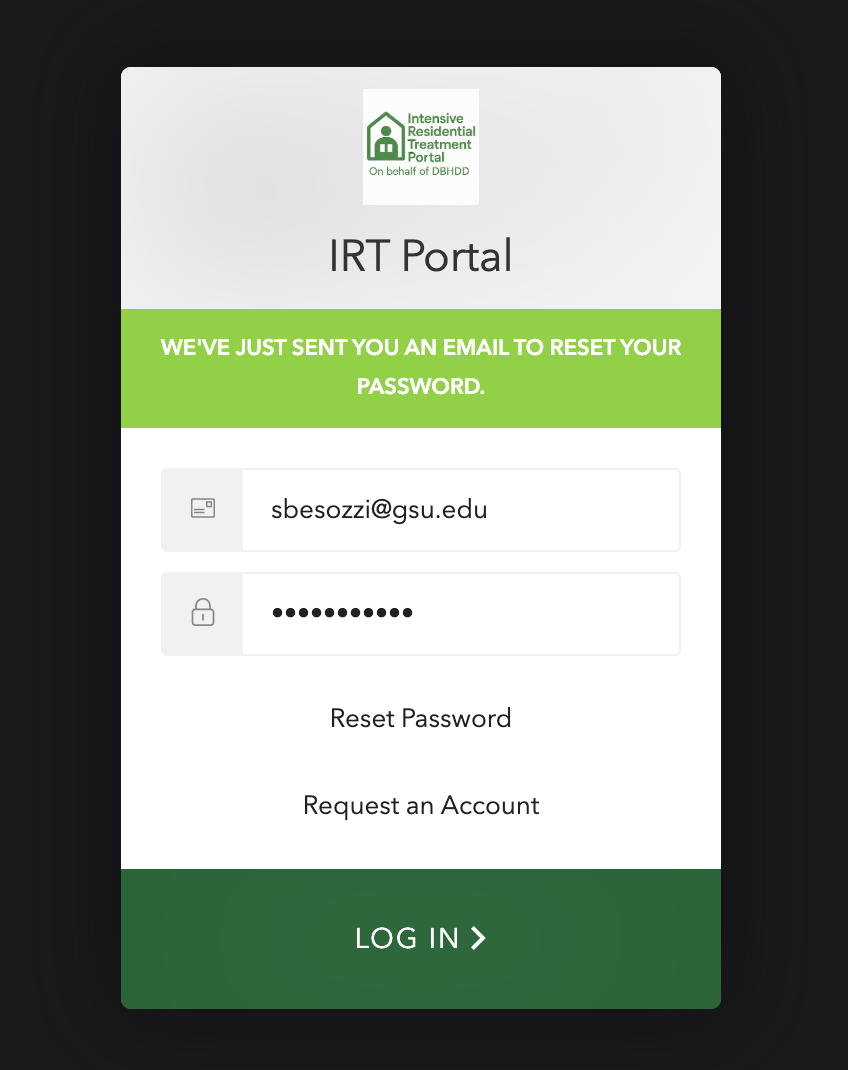
You'll get a nofitication that an email has been sent to you to reset your password.
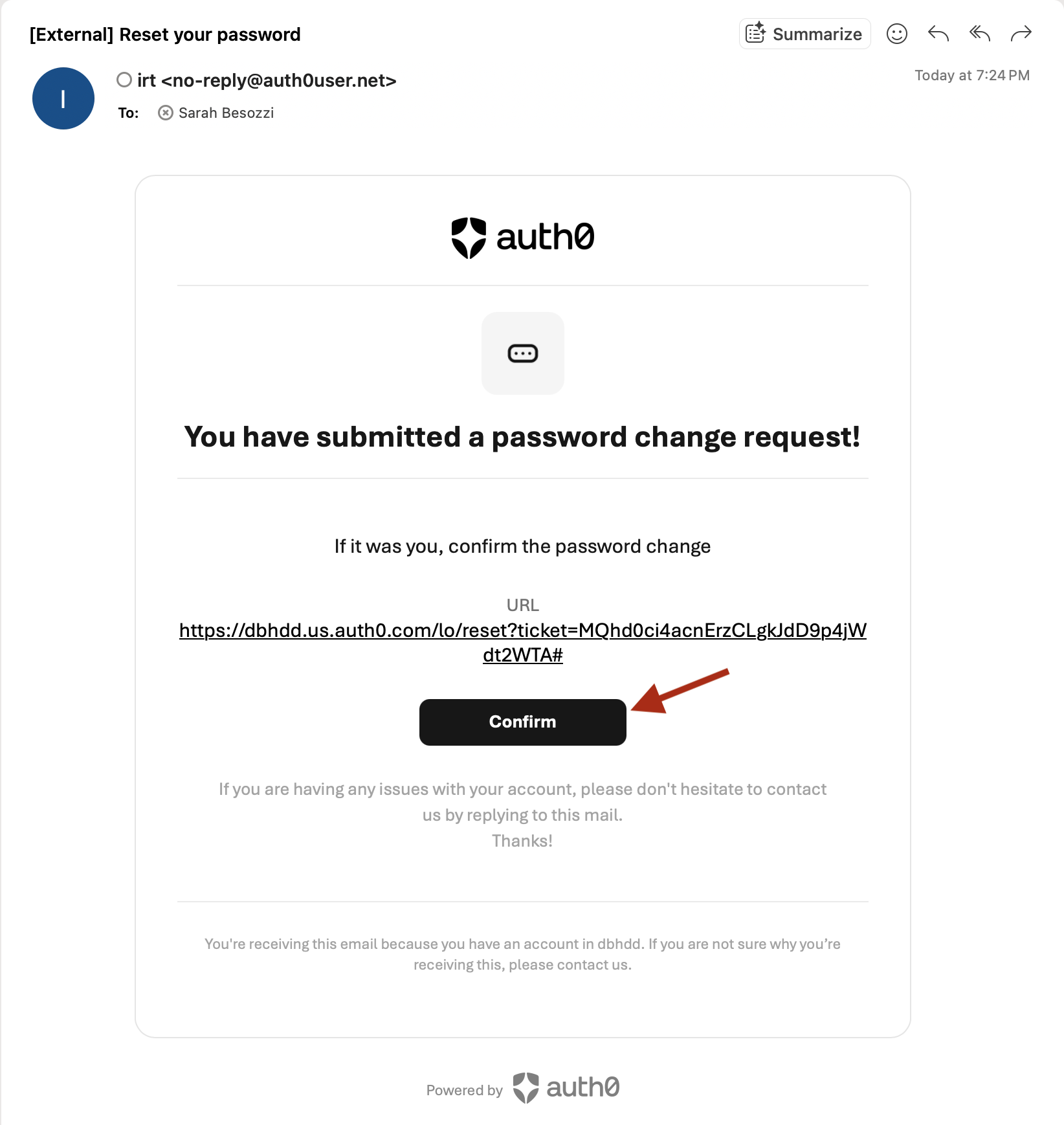
Check your email inbox for the notification.
In the email, select the Confirm button.
You'll be redirected to the Change Password page.
Enter your new password and confirm.
Select the next button.
You'll get a nofitication that your password has been successfully updated.
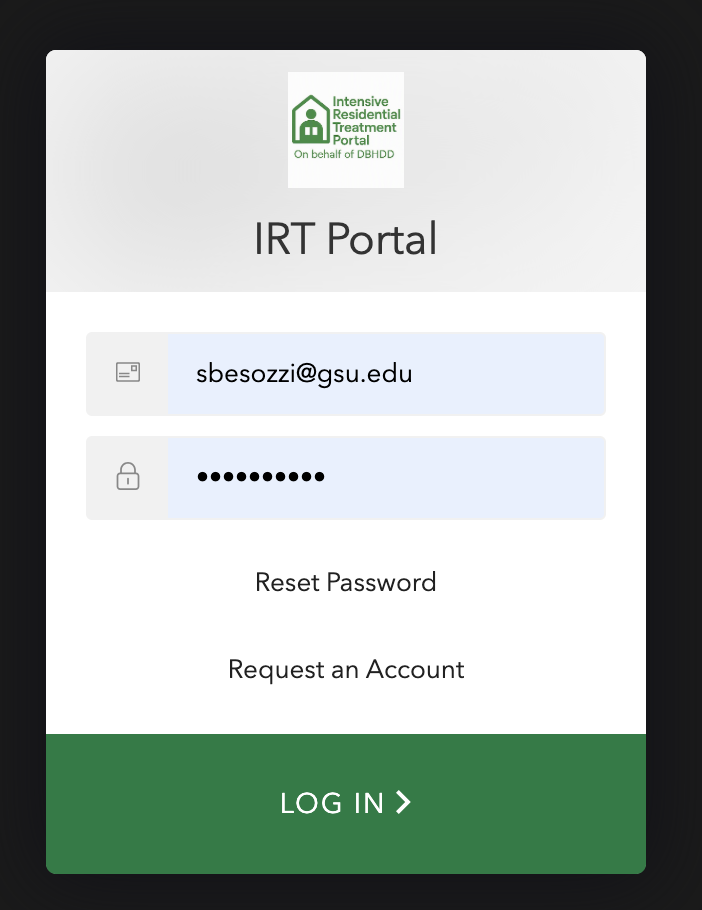
Go back to the IRT Portal and login with your new password.
Still need help? Reach out to the Research Solutions Team at researchsolutions@gsu.edu.